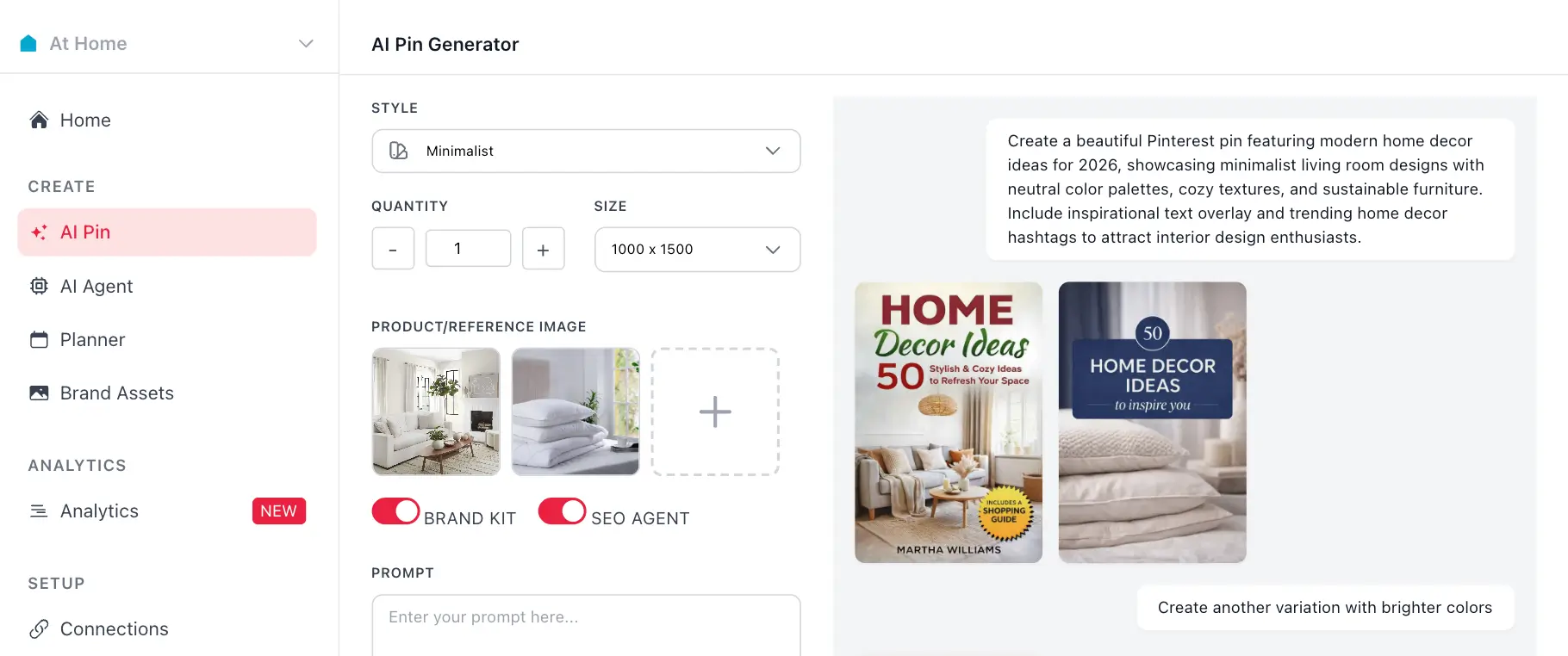


Pinterest Pin Templates for Photoshop
Professional Pinterest pin templates designed for Photoshop tutorials and design content. Create eye-catching pins that showcase Photoshop techniques and drive engagement with your design expertise.
Free Photoshop Pin Templates
Discover premium pin templates tailored for Photoshop content and design tutorials. Each design helps you showcase Photoshop techniques and drive traffic to your design content.

Photoshop Template 1

Photoshop Template 2

Photoshop Template 3

Photoshop Template 4

Photoshop Template 5
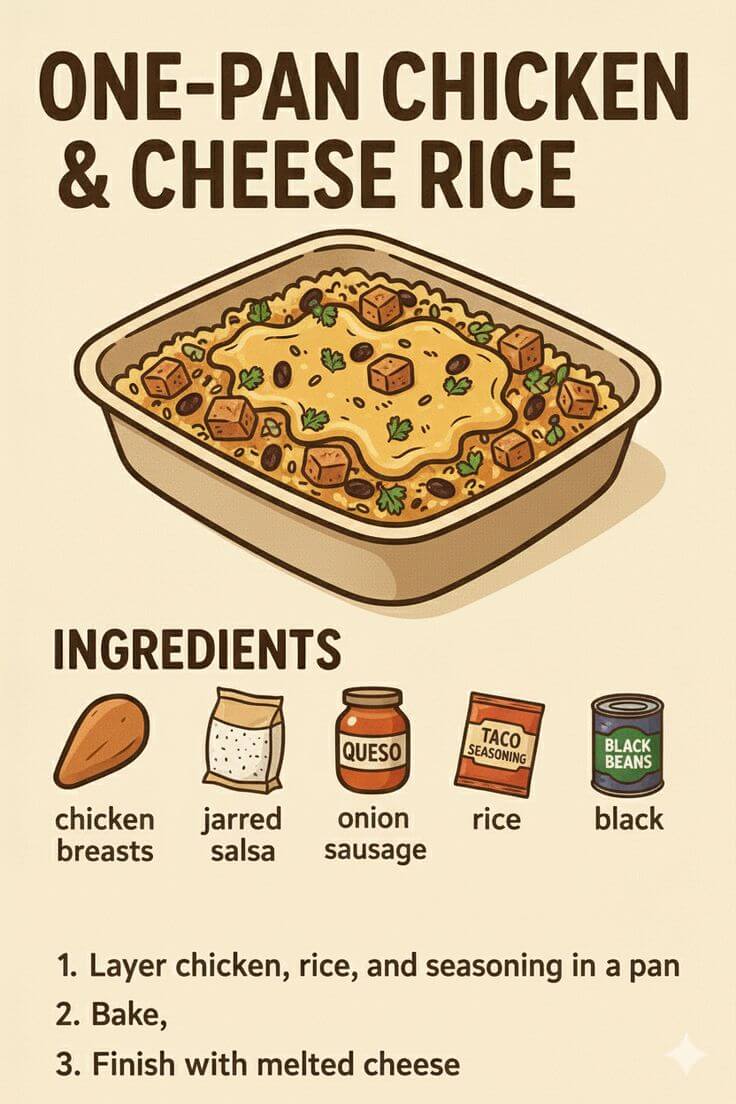
Photoshop Template 6
Tips for Creating Successful Photoshop Pins
1. Showcase Photoshop Techniques and Results
Photoshop pin templates need to demonstrate design skills and techniques instantly. Use your pin design to showcase before and after comparisons, Photoshop effects, or design transformations.
Include phrases like "Photoshop Tutorial," "Design Tips," or "Creative Effects" directly on your pin. Clear technique information helps designers quickly understand what Photoshop skills they'll learn from your content.
2. Use High-Quality Design Examples
High-quality design visuals are essential for Photoshop pins. Use professional examples that showcase Photoshop work, design projects, or creative edits in the best possible light.
Create visually impressive examples that highlight Photoshop capabilities. Pinterest users make quick decisions, and compelling design visuals are what stops the scroll and drives clicks to your content.
3. Include Photoshop Skill Level and Tool Focus
Photoshop pins that show skill level and specific tools often perform better. Include details like "Beginner Friendly," "Advanced Techniques," "Photo Editing," or "Graphic Design" when relevant.
Clear skill level information helps users quickly determine if the tutorial fits their Photoshop experience. This immediate context significantly increases click-through rates for Photoshop content.
4. Create Pins That Address Design Challenges
Design pin templates that address the specific Photoshop problems your content solves. Use your pins to communicate how your tutorials help others improve their design skills.
Create pins around common design challenges and show how your Photoshop content provides solutions. This approach attracts people actively seeking the design knowledge or inspiration you offer.
5. Maintain Consistent Design Branding
Build brand recognition by using consistent pin templates across all your Photoshop content. Use the same color palette, fonts, and design style throughout.
This creates a cohesive visual identity that makes your pins instantly recognizable. When someone sees your pin, they should immediately know it's from your Photoshop content before reading the text.
6. Optimize Pins for Photoshop Keywords
Pinterest functions as a search engine, so optimize your Photoshop pin templates with relevant keywords. Include terms your target audience searches for when looking for Photoshop content.
Use keywords like "Photoshop tutorial," "design tips," "photo editing," or "graphic design" naturally in your pin descriptions. This helps your pins appear when users search for Photoshop solutions.
7. Test Different Pin Styles for Various Photoshop Topics
Different Photoshop topics may require different pin template styles. Test various designs to discover what works best for showcasing your design expertise.
Try tutorial-focused designs versus inspiration templates. Use Pinterest Analytics to track which templates generate the most clicks and engagement for your Photoshop content.
8. Create Multiple Pins for Popular Photoshop Techniques
Your best-performing Photoshop techniques deserve multiple pin variations to maximize visibility. Creating different templates for the same technique gives you more opportunities to rank in Pinterest search.
Each pin variation can highlight different aspects, emphasize different benefits, or target different skill levels. This strategy helps you reach more people looking for Photoshop inspiration.
Frequently asked questions
Your most important questions about Pinterest pin templates for Photoshop answered here.