


Sometimes a Pinterest board is more than just a collection of ideas.
It can be a shared mood board for a new project, a wedding planning space, or a simple way to send inspiration to a friend.
If you are wondering how to share a Pinterest board with someone, the process is straightforward.
You can send a direct link or invite others to collaborate, depending on what you need.
Here is how it works.
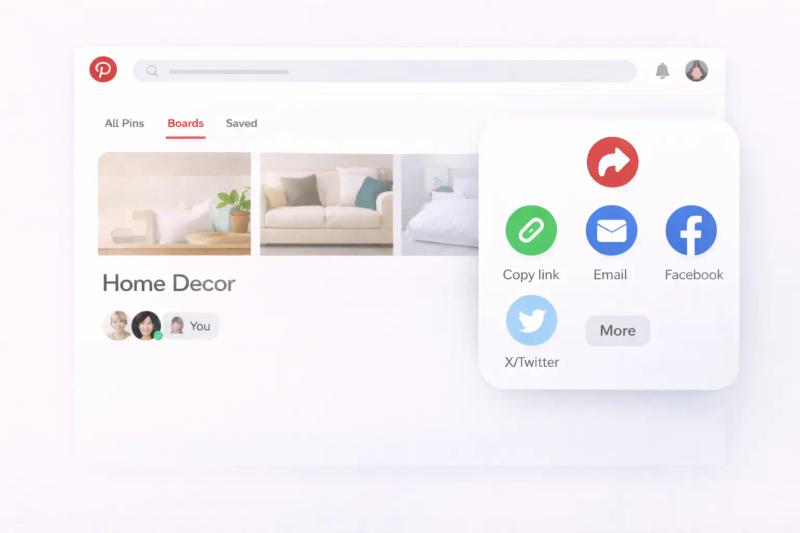
To share a Pinterest board, you have two options:
- Copy and send the board link if it is public. Anyone with the link can view it.
- Invite collaborators if you want others to add and organize pins.
Private boards require invitations. Sharing a link alone will not grant access.
How to Share a Public Pinterest Board
If your board is public, anyone can view it through a direct link. This is the easiest way to share a Pinterest board.
On the Mobile App
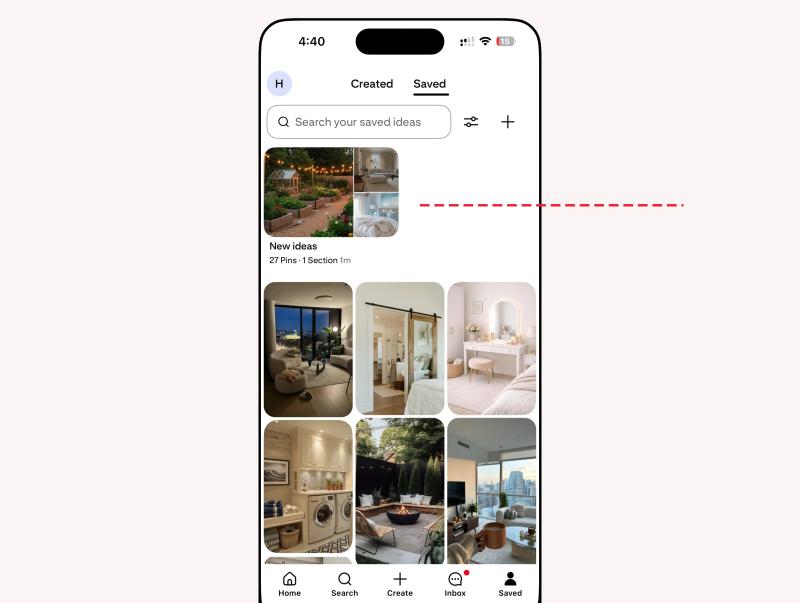
1. Open the Pinterest app.
2. Go to your profile.
3. Open the board you want to share.
4. Tap the share icon at the top of the screen.
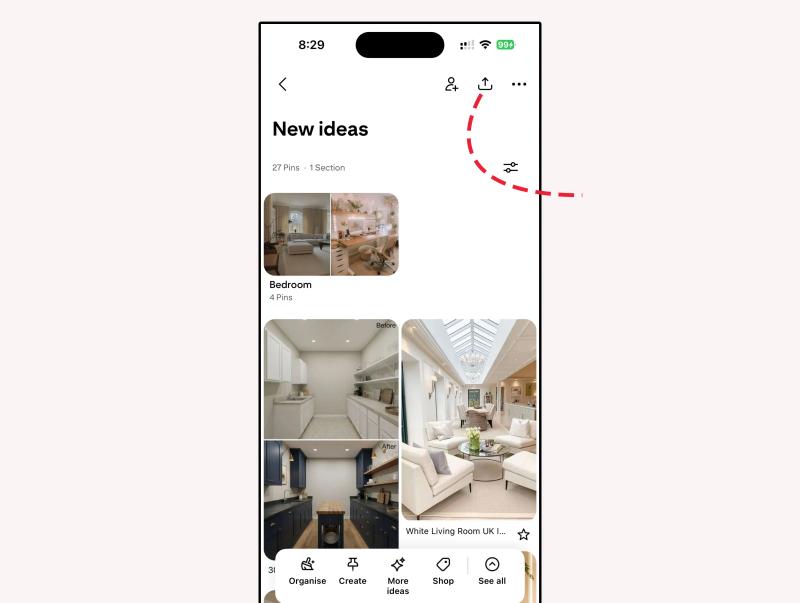
5. Choose how you want to share it, such as copying the link or sending it through a messaging app.
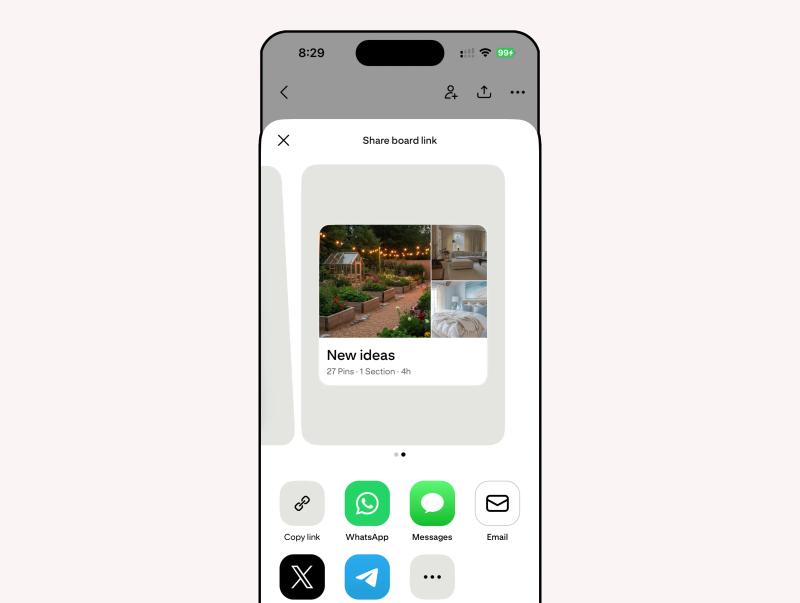
Once shared, anyone with the link can view the board, follow it, and save pins from it.
On Desktop
1. Go to Pinterest.com and log in.
2. Click your profile picture in the top right corner.
3. Open the board.
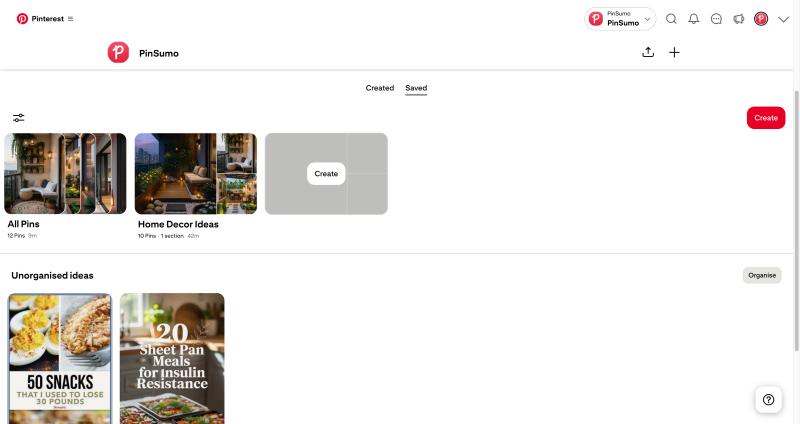
4. Click the share icon.
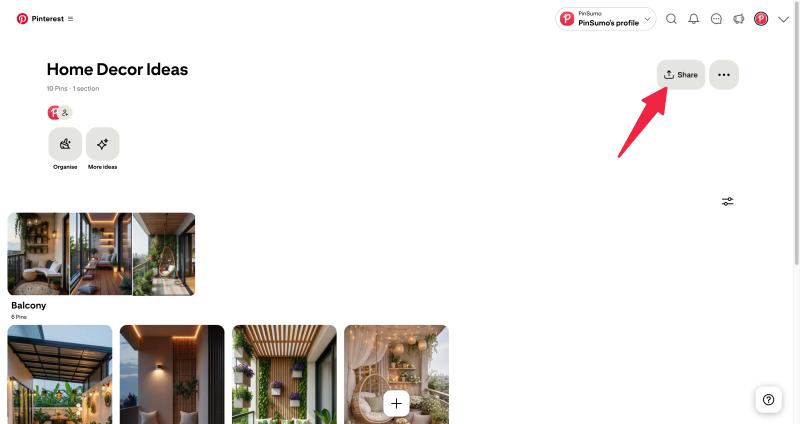
5. Copy the board URL and paste it wherever you want to send it.
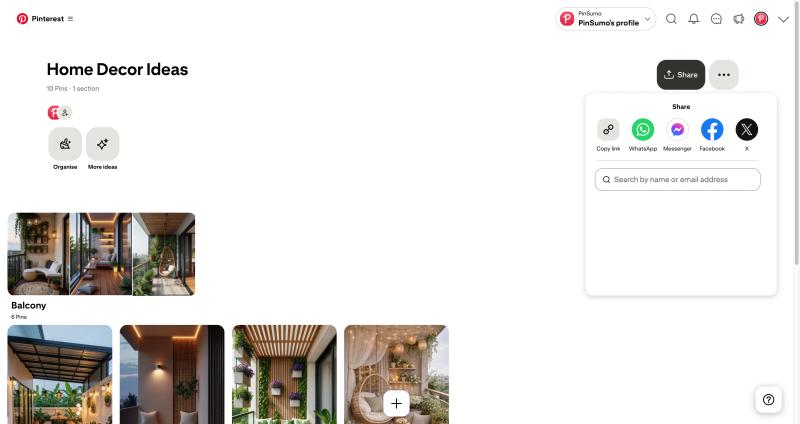
You can share the link through email, WhatsApp, Slack, or even embed it in a blog post.
If you want to learn more about managing board visibility, Pinterest explains board settings in its Help Center.
Inviting Someone to Collaborate on a Pinterest Board
Sometimes sharing is not enough. You may want someone to add pins, organize sections, or build ideas together.
Pinterest allows you to invite collaborators to a board.
When someone becomes a collaborator:
- They can add new pins
- They can move pins into sections
- They can help organize content
They cannot delete the board or remove you as the owner.
How to Invite a Collaborator for a Pinterest Board (Desktop)
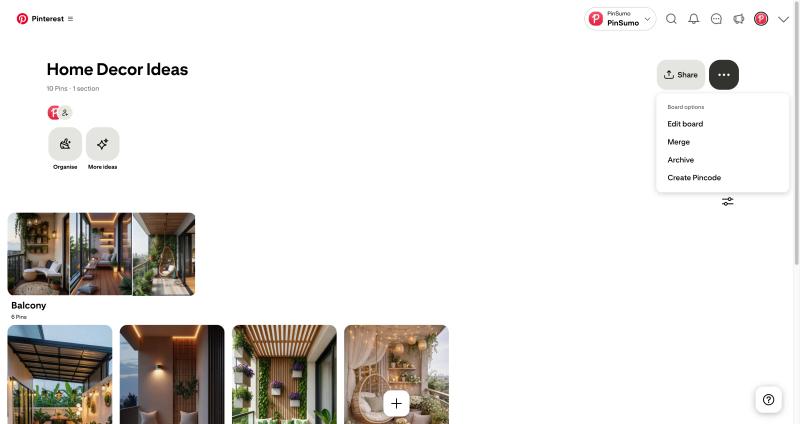
1. Open the board.
2. At the top of the board, click the three-dot menu.
3. From the dropdown menu, select Edit board.
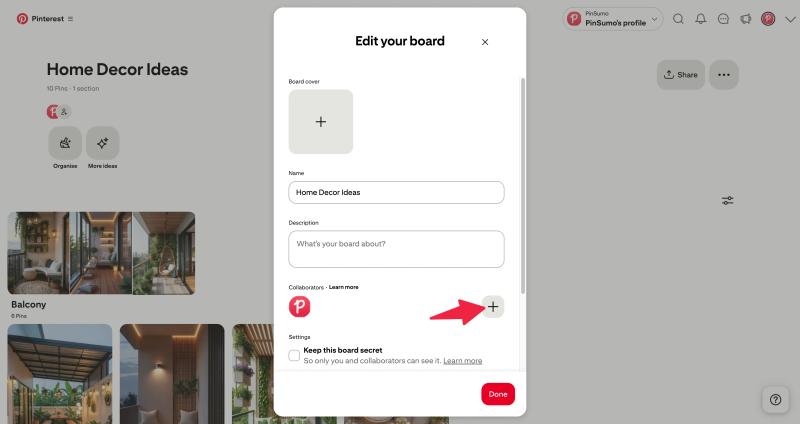
4. Inside the board settings, look for the Collaborators field and click on the "+" icon.
5. Type the person’s:
- Pinterest username
- Name associated with their account
- Or email address
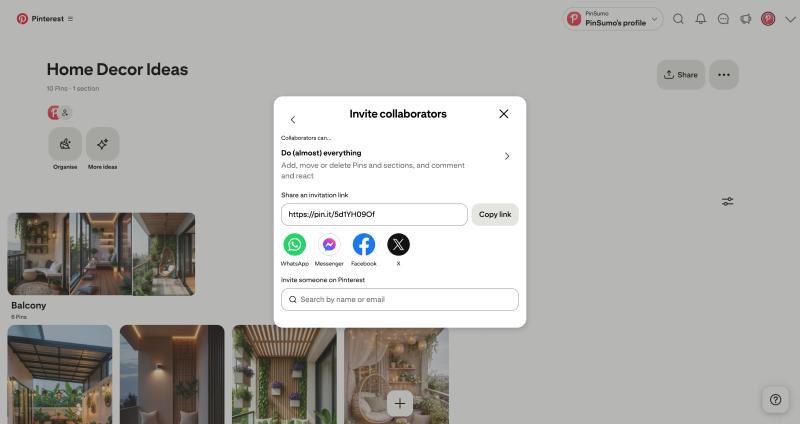
They will receive a notification. Once they accept, they can contribute.
6. After adding the collaborator, click Save to confirm.
How to Share a Private Pinterest Board
You can share a private board, but there is one important difference.
A private board is not visible to the public. Even if someone has the link, they will not be able to view it unless you invite them.
To share a private board:
- Open the board.
- Use the Invite option to add specific people.
Without an invitation, access will be denied.
If you are unsure whether your board is public or private, you can check in the board settings under Edit board.
What Happens After You Share a Board
If the board is public and you share the link:
- Others can view and follow it.
- They can save individual pins to their own boards.
- Your board may gain more visibility over time.
If the board is collaborative:
- Invited users can actively contribute.
- You remain the owner.
- You can remove collaborators anytime.
Sharing does not transfer ownership. It simply allows access.
When Should You Share a Pinterest Board?
People share boards for many reasons.
Some common examples include planning events, organizing brand inspiration, collecting gift ideas, creating a shared mood board for a project, or building a travel itinerary with friends.
Pinterest boards work well because everything stays visually organized in one place.
Final Thoughts
Sharing a Pinterest board is straightforward. You can send a direct link for viewing or invite someone to collaborate if you want shared editing access.
The key difference is visibility. Public boards can be viewed by anyone with the link. Private boards require invitations.
Once you understand that difference, you can choose the sharing method that fits your purpose.


Generate pins with AI agent on autopilot
Create, schedule, and grow your Pinterest presence effortlessly with AI-powered automation.
Try GenSumo FreeFrequently Asked Questions
Can anyone see my Pinterest board if I share the link?
If your board is public, anyone with the link can view it, follow it, and save pins from it.
If your board is private, only people you specifically invite can access it, even if someone else has the link.
How do I know if my Pinterest board is public or private?
Open the board and tap or click Edit board. If the option Keep this board secret is turned on, the board is private. If it is turned off, the board is public.
Can I share a Pinterest board without inviting someone?
Yes. For public boards, you can simply copy the board link and send it. Inviting someone is only necessary if you want them to collaborate or if the board is private.
Will someone be notified if I share their board?
No. Pinterest does not notify users when you share their public board link with others. Sharing a link is a private action on your side.
Can collaborators remove me from my own board?
No. As the board owner, you remain in control. Collaborators can add and organize pins, but they cannot remove you or delete the board.
Can I stop sharing a board after inviting someone?
Yes. You can remove collaborators anytime by going to the board settings and managing access. Once removed, they will no longer be able to view or edit a private board.
Does sharing a board make it public?
No. Sharing does not change the privacy status. A board only becomes public if you manually turn off the Keep this board secret setting.
Can I share a Pinterest board outside Pinterest?
Yes. You can copy the board URL and share it through email, messaging apps, social media, or even add it to your website.