


Pinterest can feel calm and inspiring when everything is neatly arranged. But once you start saving dozens or hundreds of pins, boards can quickly become cluttered.
Maybe you have one board called “Home Ideas” with everything from kitchens to bedrooms mixed together. Maybe your business board has product pins, testimonials, and content ideas all in one place.
If you are wondering how to organize Pinterest boards properly, this guide will walk you through it in a clear and practical way.
We will cover:
- How to make sections on Pinterest
- How many sections you can have in a Pinterest board
- How to delete a section in Pinterest
- Simple strategies to keep boards organized long term
You can organize Pinterest boards using sections, which act like folders inside a board.
- Create sections inside any board to group similar pins.
- Move pins into sections to reduce clutter.
- Delete sections anytime without losing your pins.
- There is no strict public limit, but keeping sections simple makes boards easier to manage.
Organized boards are easier to navigate and look more professional.
Why Organizing Pinterest Boards Matters
Pinterest is built around visual discovery. But discovery works best when your content is structured.
Well organized boards:
- Make it easier for you to find saved pins
- Help collaborators navigate content
- Improve user experience if your boards are public
- Look more professional for business accounts
Instead of creating dozens of separate boards, sections let you keep related ideas together under one main topic.
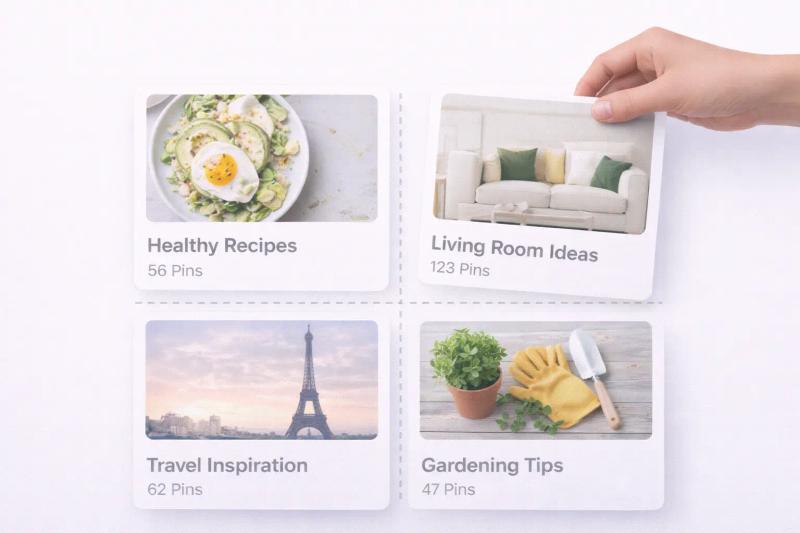
For example, instead of five different boards for home decor, you can create one board and divide it into sections such as Living Room, Kitchen, Bedroom, and Lighting.
What Are Pinterest Sections?
Sections are smaller folders inside a board.
Think of a board as a big container and sections as labeled compartments within it.
Each section holds pins related to a specific subtopic. This keeps your main board clean while still organized.
Sections do not appear separately on your profile. They stay inside the board.
How to Make Sections on Pinterest App
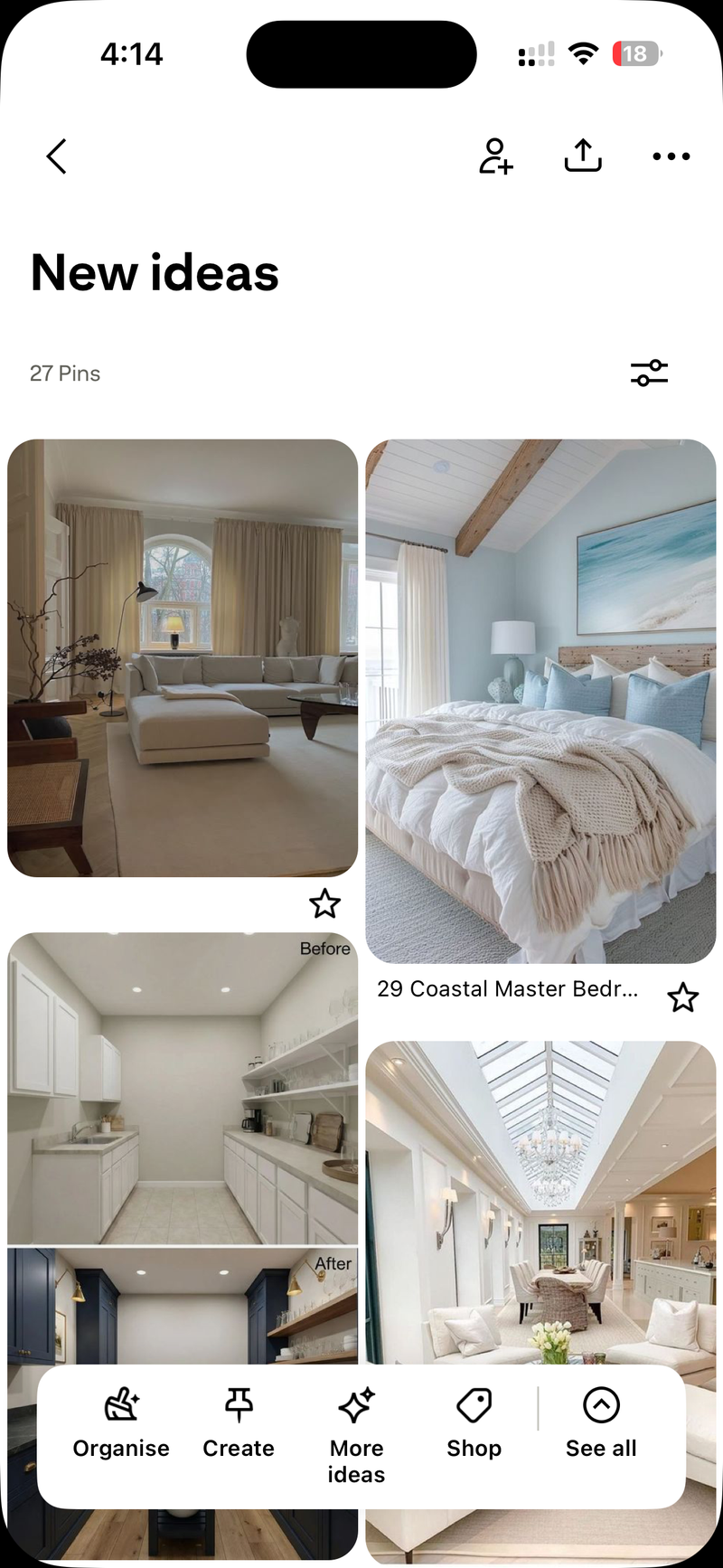
1. Open the Pinterest app and tap your profile picture to go to your profile.
2. Select the board you want to organize.
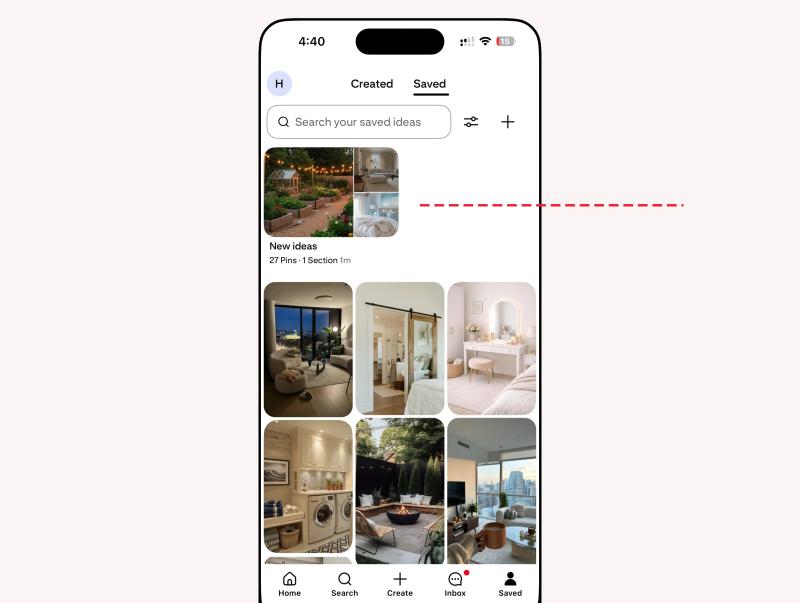
3. Tap the See all option appearing at bottom and choose Section from the menu.
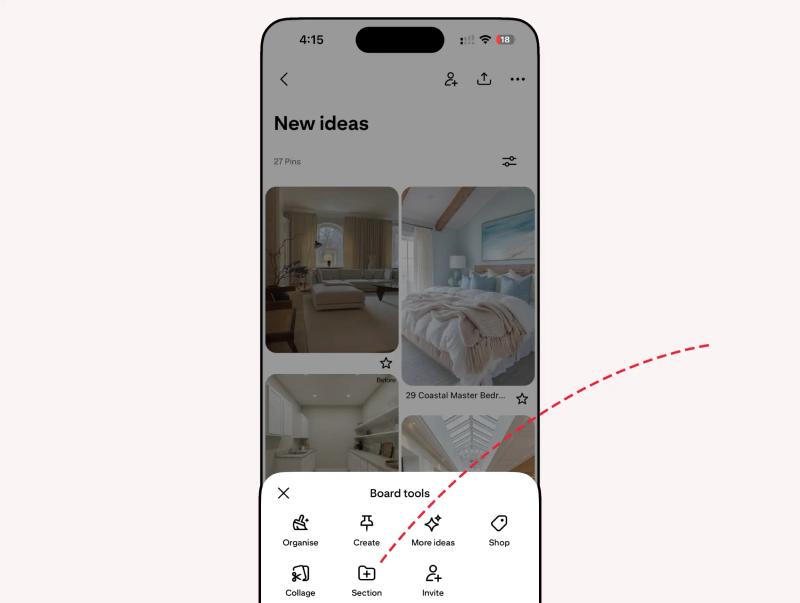
4. Enter a clear section name.
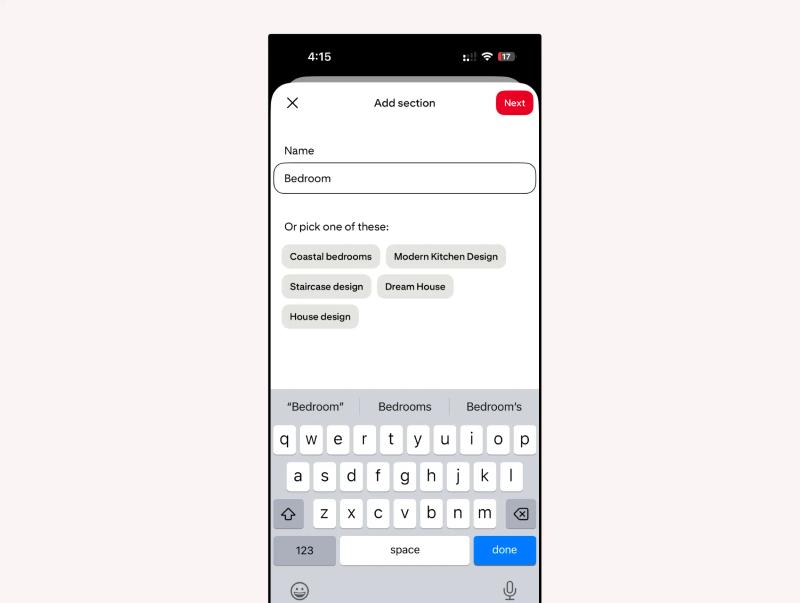
5. Choose Pins to add in section.
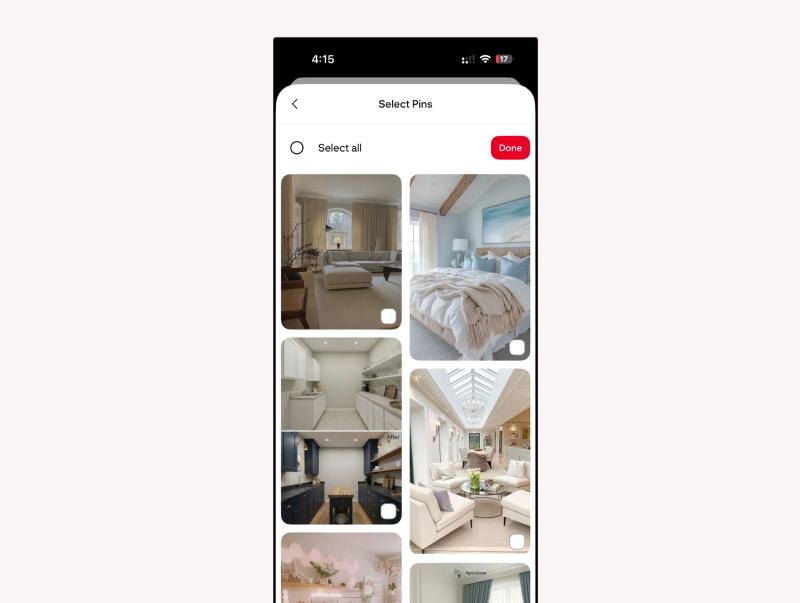
Your new section will appear inside the board.
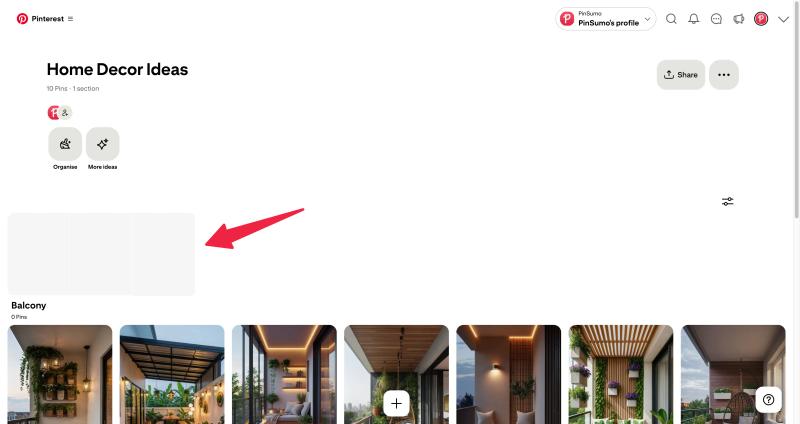
How to Make Sections on Pinterest Desktop
1. Go to Pinterest.com and log in.
2. Open your Pinterest board where you want to create section.
3. Click the plus icon at the bottom of your screen and select Section
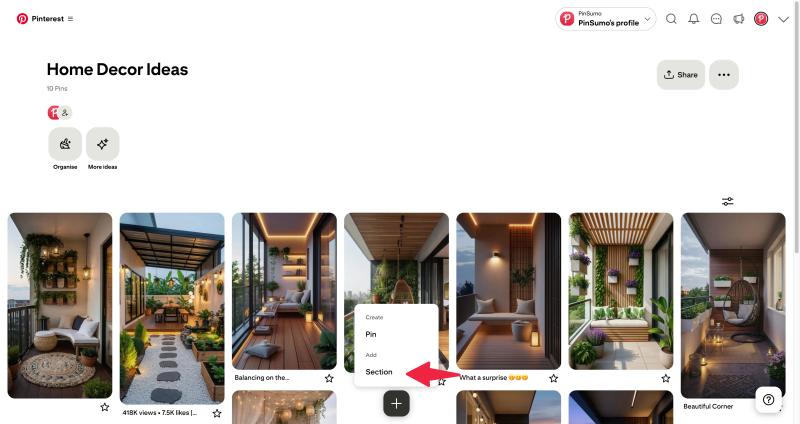
4. Enter a name for the section.
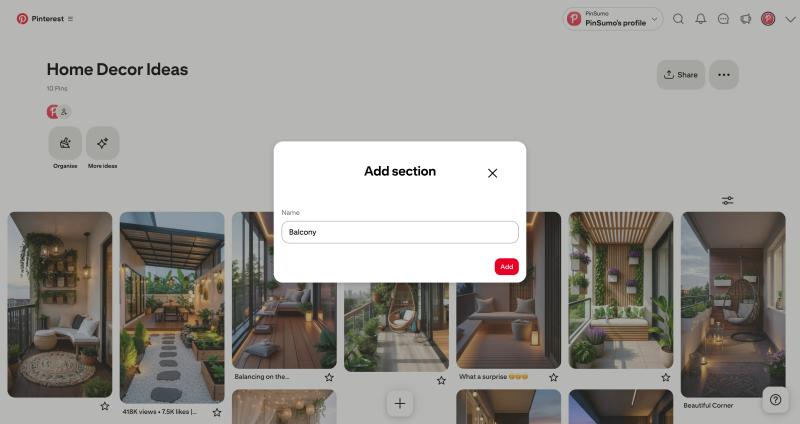
5. Click Add.
The section is created instantly.
How to Move Pins Into Sections
After creating sections, you can organize your existing content.
On Mobile
1. Open the board that contains the pins.
2. Tap Organize icon at the bottom of the board.
3. Select the pins you want to move.
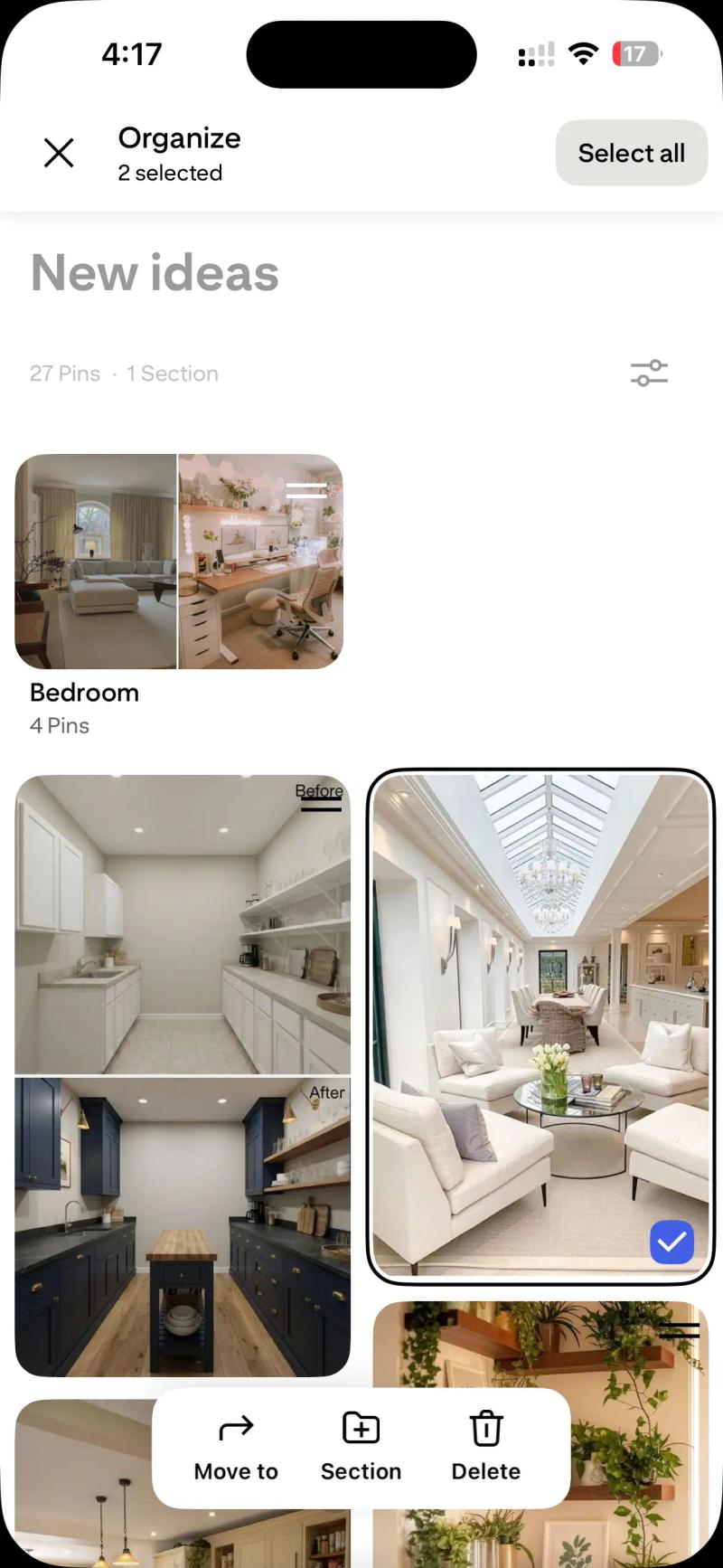
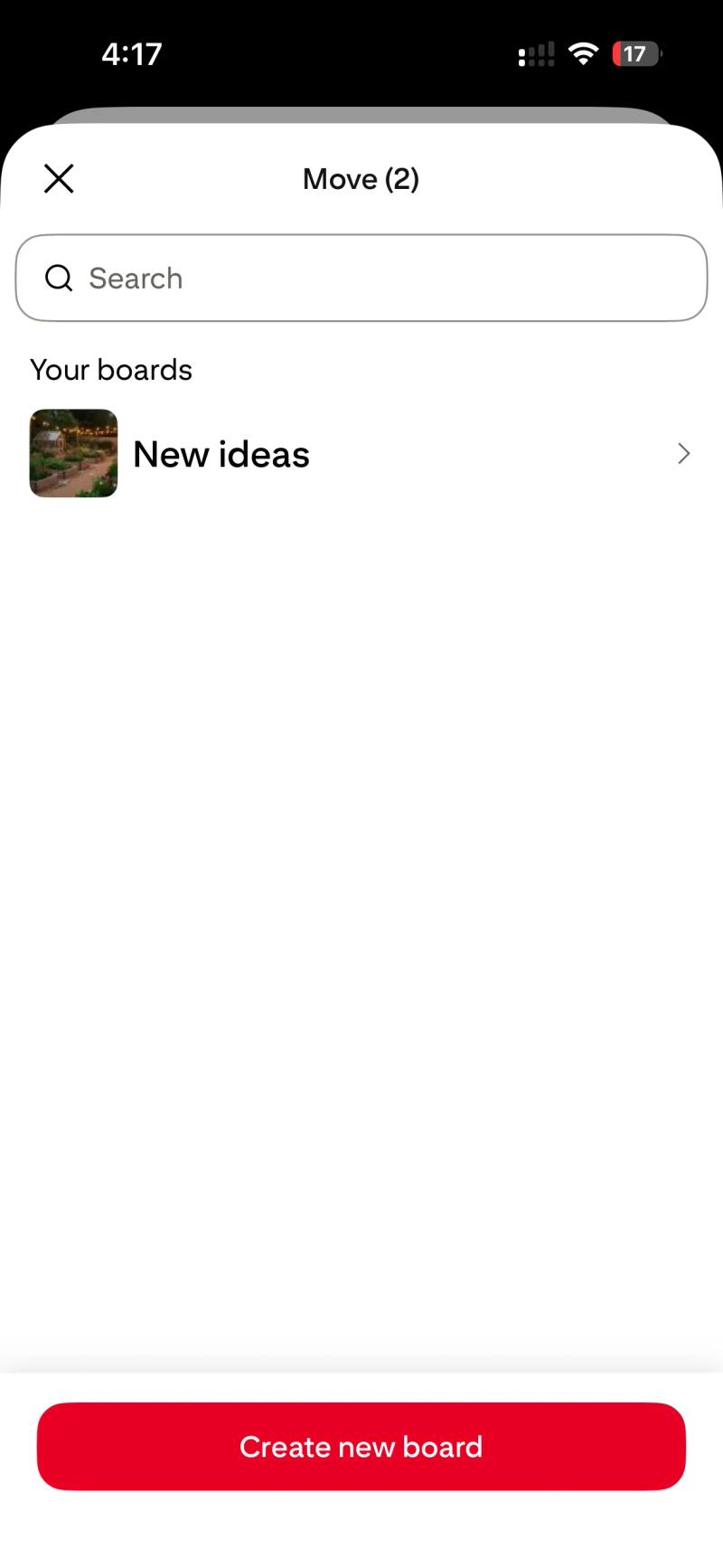
4. Tap Move at the bottom of the screen.
5. Choose the section where you want the pins to go.
On Desktop
1. Open the board.
2. Click Organize icon.
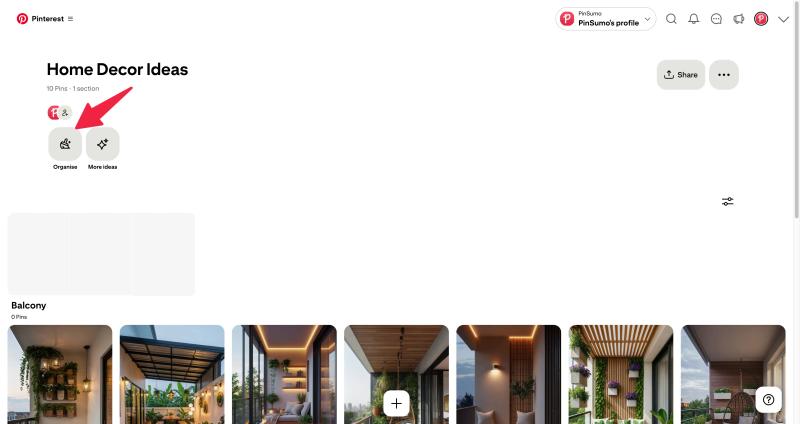
3. Select the pins which you want to move.
4. Click Move icon.
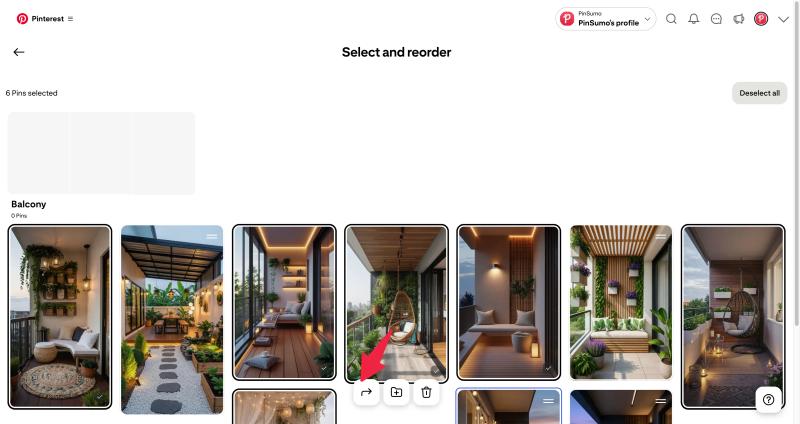
5. Choose the section and click save.
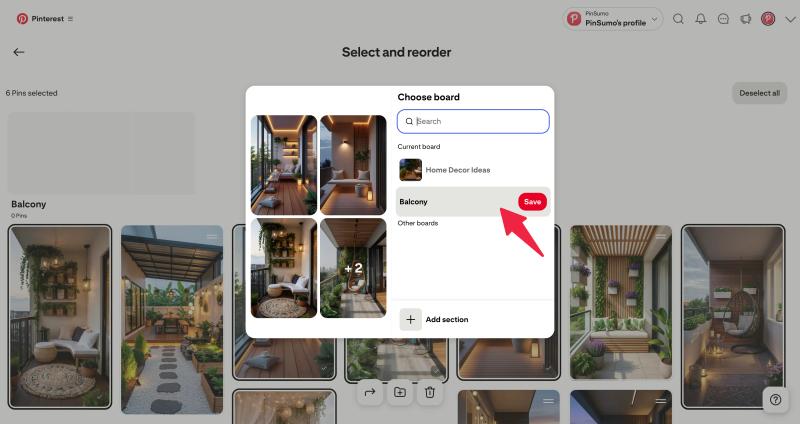
This helps separate different ideas without deleting anything.
How Many Sections Can You Have in a Pinterest Board?
Pinterest does not publicly state a strict number limit for sections in a board. Most users can create many sections without hitting a cap.
However, just because you can create many sections does not mean you should.
From an organization perspective, too many sections can make a board harder to navigate.
A practical approach is to:
- Group related ideas together
- Avoid creating a section for every minor variation
- Keep section names clear and specific
For example, instead of having sections called “Blue Kitchen,” “White Kitchen,” and “Modern Kitchen,” you might group them under broader categories like Kitchen Design and use descriptive pin titles for detail.
How to Delete a Section in Pinterest
If you no longer need a section, you can remove it.
On Mobile
- Open the board.
- Tap the section you want to delete.
- Tap the three dot menu.
- Select Delete section.
- Confirm your choice.
When you delete a section, you will be asked what to do with the pins inside it. You can move them to another section or keep them in the main board.
On Desktop
1. Open the board that contains the section.
2. Click the section you want to remove.
3. Click the three dot menu and choose Edit section.
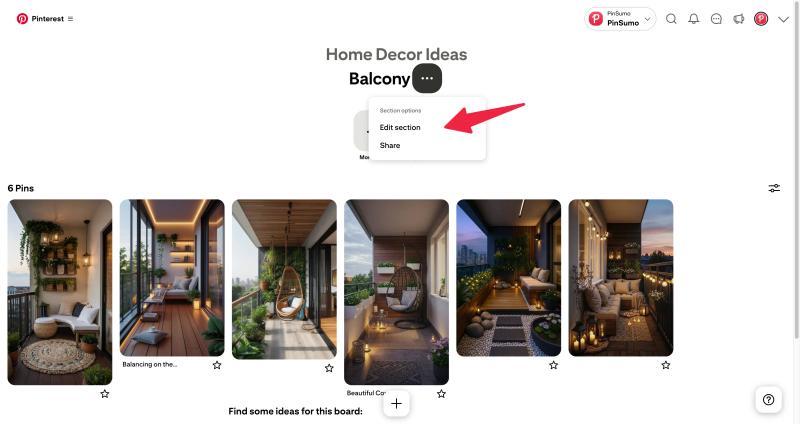
4. In the popup window, click the Delete button at the bottom left.
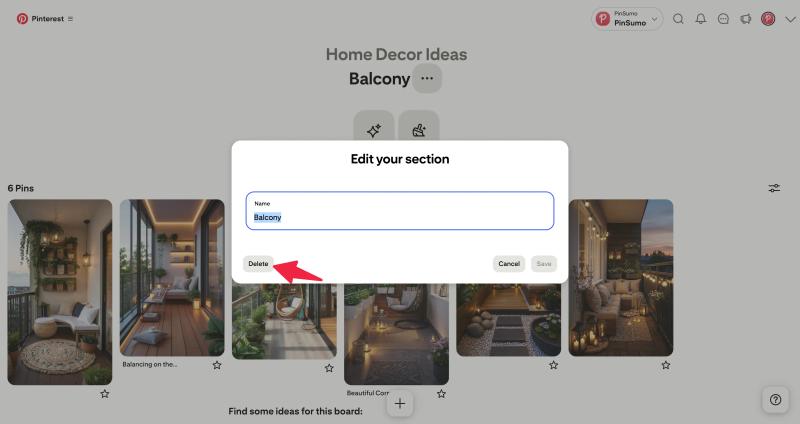
5. Confirm your choice to delete the section.
Deleting a section does not automatically delete the pins unless you choose to remove them.


Generate pins with AI agent on autopilot
Create, schedule, and grow your Pinterest presence effortlessly with AI-powered automation.
Try GenSumo FreeSmart Ways to Organize Pinterest Boards
Organization is not only about sections. It is also about structure.
Here are some practical ideas:
- Start with broad board themes
- Use sections for subcategories
- Keep names simple and searchable
- Review and clean up old pins occasionally
If you use Pinterest for business, consider aligning sections with:
- Product categories
- Content themes
- Customer interests
- Seasonal campaigns
Clear structure makes your boards easier to navigate for both you and visitors.
If you are unsure what to name your boards, these Pinterest board name ideas can help you choose something clear and searchable:
Should You Create More Boards or More Sections?
This depends on your goals.
If topics are very different, separate boards make sense.
If topics are closely related, sections are better.
For example: Home Decor and Travel should likely be separate boards. Kitchen Ideas and Living Room Ideas can be sections inside a Home Decor board.
Keeping this balance avoids overwhelming your profile.
Final Thoughts
Learning how to organize Pinterest boards makes the platform far more useful.
Sections allow you to structure ideas without cluttering your profile with too many boards.
You can create sections, move pins, delete sections, and reorganize anytime. There is flexibility built into the system.
If your boards feel messy, start by creating three to five clear sections inside one board and move pins accordingly. Even small adjustments can make a big difference.
Frequently Asked Questions
How do I organize Pinterest boards properly?
The easiest way to organize Pinterest boards is by using sections. Create sections for subtopics inside a board, then move related pins into each section. This keeps everything structured without creating too many separate boards.
How many sections can you have in a Pinterest board?
Pinterest does not publicly state a strict limit on the number of sections per board. Most users can create multiple sections without issues. However, keeping sections clear and limited helps maintain better organization.
How do I make sections on Pinterest?
Open a board, tap or click Add section, enter a section name, and create it. You can then move existing pins into that section to organize your content.
How do I delete a section in Pinterest?
Open the board, select the section, tap or click the three dot menu, and choose Delete section. You can decide whether to move the pins elsewhere or remove them.
Does deleting a section delete the pins inside it?
Not automatically. When you delete a section, Pinterest gives you the option to move the pins to another section or keep them in the main board.
Is it better to create new boards or use sections?
If the topics are closely related, use sections inside one board. If the topics are very different, create separate boards. Sections work best for organizing subcategories within a single theme.
Do sections affect Pinterest SEO?
Sections themselves do not directly rank in search results like boards do. However, clear section names and organized boards can improve user experience and help visitors navigate your content more easily.