

GenSumo
FREE TOOL

Free LinkedIn Text Formatter

Style your LinkedIn text professionally with our free text formatter. Create bold, italic, and styled text for your LinkedIn posts using our LinkedIn font generator and text styling tool. Completely free, no sign up required.

Post Preview
Profile
Your Name
Just now · ๐ŸŒ
Type your text here...
47
12 comments 5 shares
WHY FORMAT TEXT

Enhance Your LinkedIn Professional Presence

Styled text helps your LinkedIn content appear more professional and engaging in the feed. Our LinkedIn text formatter and font generator enables you to create bold, italic, and styled text that elevates your professional content and improves readability.

Professional Content Enhancement

Formatted text elevates your LinkedIn posts, making them more professional and easier to scan. Styled text helps your content stand out in professional feeds.

Highlight Key Insights

Use bold or italic formatting to emphasize important points in your LinkedIn posts. Our text styling tool helps you highlight critical information effectively.

Improve Content Readability

Styled text improves readability in your LinkedIn posts without requiring additional graphics. Professional formatting makes your content easier to consume and more engaging.

Instant Professional Formatting

Our LinkedIn text formatter enables quick creation of professionally styled text. Simply input your content, select formatting options, and copy the formatted result.

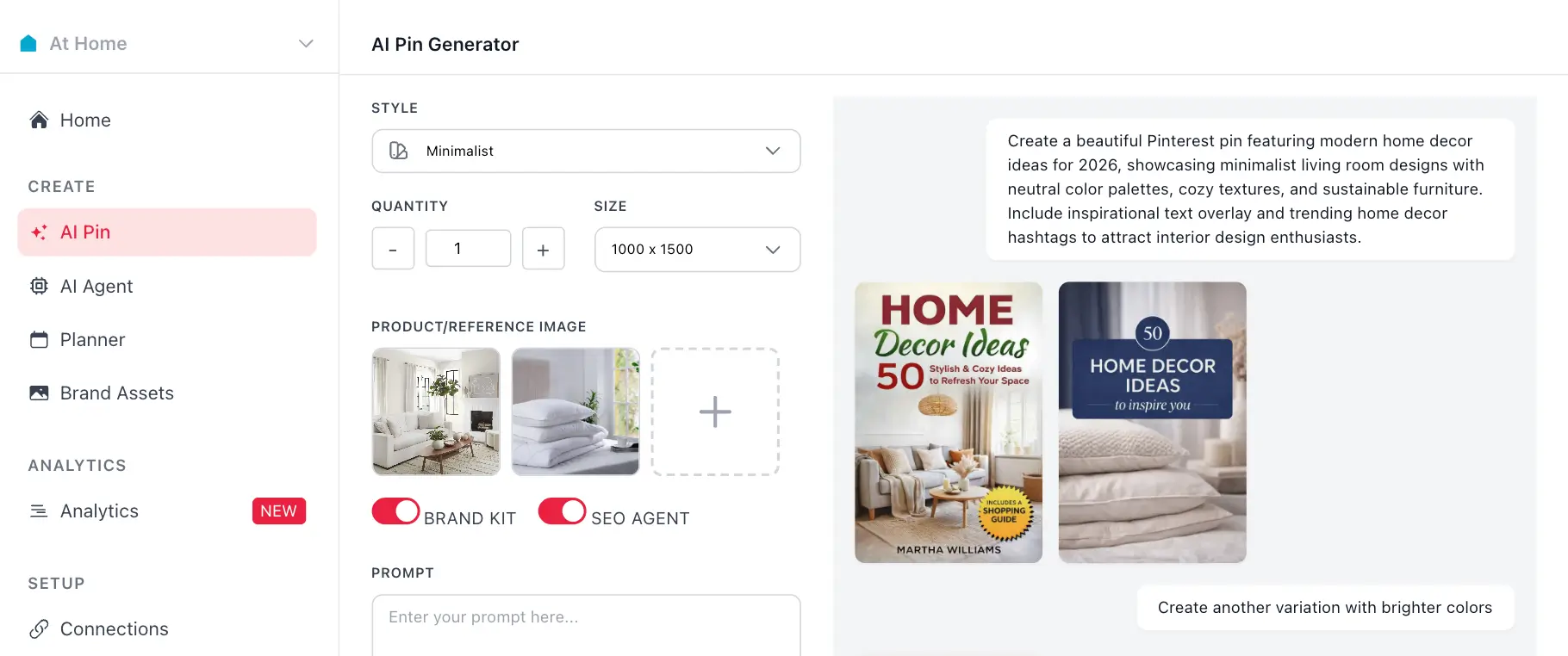
AI Pin Generator
AI agent
CREATE PINS WITH AI

Generate Pinterest Pins with AI Agent

Use your generated hashtags with GenSumo's AI pin generator. Create stunning Pinterest pins with AI-generated titles, descriptions, and hashtags all in one place.

Try GenSumo Free
COMPLETE GUIDE

How to Use LinkedIn Text Formatting Professionally

Discover how to use our LinkedIn text formatter and font generator to create professionally styled text that enhances your posts. These practical tips will help you leverage text styling effectively on LinkedIn.

  1. Select Appropriate Formatting for Professional Content

    Different text styles serve different professional purposes. Use bold text to emphasize key insights and important updates. Italic text works well for quotes, citations, or subtle emphasis. Our LinkedIn text styling tool provides multiple options to match your professional content's tone.

  2. Apply Formatting Strategically

    While styled text can enhance readability, excessive formatting can appear unprofessional. Use formatting to highlight critical information rather than formatting entire sections. This maintains readability and keeps your LinkedIn content looking polished.

  3. Preview Formatted Text in Draft Mode

    After using our LinkedIn font generator, preview how your formatted text appears in a draft post. Some Unicode characters may not render correctly in all LinkedIn areas, so testing ensures your formatting displays as expected before publishing.

  4. Balance Formatting with Quality Content

    Formatted text enhances your professional message but doesn't substitute for well-written content. Prioritize clear, valuable content first, then use our LinkedIn text formatter to add visual emphasis where it strengthens your message.

  5. Maintain Professional Formatting Consistency

    Keep a consistent approach to text formatting across your LinkedIn posts. This establishes a recognizable professional style for your personal brand and makes your content feel more cohesive. Our LinkedIn text styling tool simplifies applying consistent formatting.

AUTOMATION & SCHEDULING

Schedule and Automate Your Pinterest Strategy

After generating hashtags, use GenSumo's scheduling feature to plan and publish your pins at optimal times. Automate your Pinterest marketing with AI-powered scheduling and best time recommendations.

At Home favicon
At Home

Planner

February 2026

Draft 12 Scheduled 8 Published 24
SUN
MON
TUE
WED
THU
FRI
SAT
1
Pin scheduled for February 1Pin scheduled for February 1
+3
2
Pin scheduled for February 2Pin scheduled for February 2
3
Pin scheduled for February 3Pin scheduled for February 3
+1
4
Pin scheduled for February 4Pin scheduled for February 4
+1
5
Pin scheduled for February 5Pin scheduled for February 5
+4
6
Pin scheduled for February 6Pin scheduled for February 6
7
Pin scheduled for February 7Pin scheduled for February 7
+2
8
Pin scheduled for February 8Pin scheduled for February 8
+5
9
Pin scheduled for February 9Pin scheduled for February 9
+1
10
Pin scheduled for February 10Pin scheduled for February 10
11
Pin scheduled for February 11Pin scheduled for February 11
+3
12
Pin scheduled for February 12Pin scheduled for February 12
13
Pin scheduled for February 13Pin scheduled for February 13
+2
14
Pin scheduled for February 14Pin scheduled for February 14
+4
15
Pin scheduled for February 15Pin scheduled for February 15
16
Pin scheduled for February 16Pin scheduled for February 16
+3
17
Pin scheduled for February 17Pin scheduled for February 17
+1
18
Pin scheduled for February 18Pin scheduled for February 18
+3
19
Pin scheduled for February 19Pin scheduled for February 19
20
Pin scheduled for February 20Pin scheduled for February 20
+4
21
Pin scheduled for February 21Pin scheduled for February 21
+1
22
Pin scheduled for February 22Pin scheduled for February 22
+6
23
Pin scheduled for February 23Pin scheduled for February 23
24
Pin scheduled for February 24Pin scheduled for February 24
+2
25
Pin scheduled for February 25Pin scheduled for February 25
+3
26
Pin scheduled for February 26Pin scheduled for February 26
+2
27
Pin scheduled for February 27Pin scheduled for February 27
+5
28
Pin scheduled for February 28Pin scheduled for February 28
+3
Start Scheduling Free
FAQ

Frequently asked questions

Your most important questions about our free LinkedIn text formatter answered here.
Our free LinkedIn text formatter transforms your standard text into professionally styled text compatible with LinkedIn. Enter your content, select formatting options like bold or italic, and our tool converts it using Unicode characters that LinkedIn recognizes. Copy the formatted text and paste it directly into your LinkedIn post or article.
You can create multiple text styles including bold, italic, underline, strikethrough, and various Unicode-based styles like double-struck, gothic, circled, and squared text. Our LinkedIn text styling tool offers comprehensive formatting options to help your professional content stand out in LinkedIn posts, articles, and comments.
Formatted text works in LinkedIn posts, comments, and direct messages. While most Unicode characters display correctly in standard posts, some advanced styles may not render properly in LinkedIn articles or company page posts. We recommend previewing your formatted text in a draft post before publishing to ensure optimal display.
Yes, our LinkedIn text formatter is 100% free with no registration required. You can format unlimited text without restrictions, payment requirements, or subscription fees. Use it as often as you need for your professional LinkedIn content.
Yes, formatted text works in LinkedIn messages and comments. Styled text can help emphasize key points in your professional communications, making your messages more engaging and easier to read for your connections and network.
After formatting your text using our tool, click the copy button to copy the styled text to your clipboard. Then paste it directly into your LinkedIn post, article, comment, or message. The formatting will be preserved when you paste it, helping your content stand out professionally.
Formatted text can make your LinkedIn content more visually appealing and easier to scan, which may help improve engagement. Bold and styled text draws attention to key points, making your posts more professional and engaging for your network.