



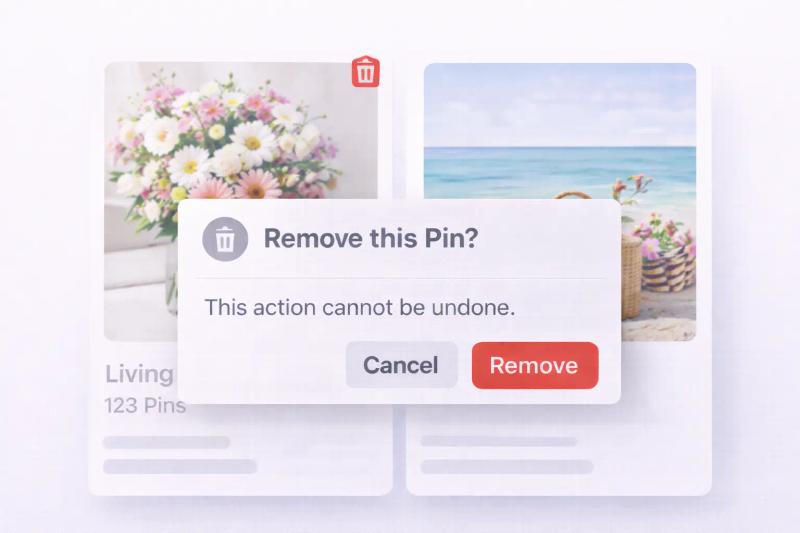
Pinterest is a long-term traffic platform.
But sometimes you publish the wrong image, link to the wrong URL, or simply want to clean up old content.
If you're wondering how to remove a Pin on Pinterest, this guide walks you through everything in a simple and clear way.
To remove a Pin on Pinterest, open the Pin, tap the three dots (•••), select Edit, and choose Delete. You can also use the Organize feature inside a board to delete multiple Pins at once.
Keep in mind: deleting a Pin is permanent. All impressions, saves, and clicks are lost, and it cannot be restored. If you’re unsure, consider editing the Pin or archiving the board instead of deleting.
What Happens When You Remove a Pin?
Before deleting anything, it helps to understand what happens.
When you remove a Pin:
- It is permanently deleted
- All saves, clicks, and impressions are lost
- You cannot recover it later
- If others saved it, their saved versions may still exist
Pinterest treats deletion as final. There is no recycle bin. If you accidentally delete something, read our guide on How to Undo a Pin on Pinterest.
How to Remove a Pin on Pinterest (Desktop)
Step 1: Go to Your Profile
Log into your Pinterest account. Click your profile picture in the top right corner.
Step 2: Open the Pin
Find the Pin you want to remove and click it.
Step 3: Click the Three Dots
You’ll see three dots (•••) near the Pin. Click them.
Step 4: Select Edit Pin
From the dropdown, choose Edit Pin.

Step 5: Scroll Down and Click Delete.

Confirm the action.

Your Pin is now removed.
How to Delete a Pin on Pinterest (Mobile App)
The process is similar on iPhone and Android.
Step 1: Open the Pinterest App
Log into your account.
Step 2: Go to Your Profile
Tap your profile icon.
Step 3: Open the Pin
Select the Pin you want to delete.
Step 4: Tap the Three Dots
Tap the three dots at the top right.

Step 5: Tap Edit
Choose Edit.

Step 6: Delete the Pin
Scroll down and tap Delete this Pin.
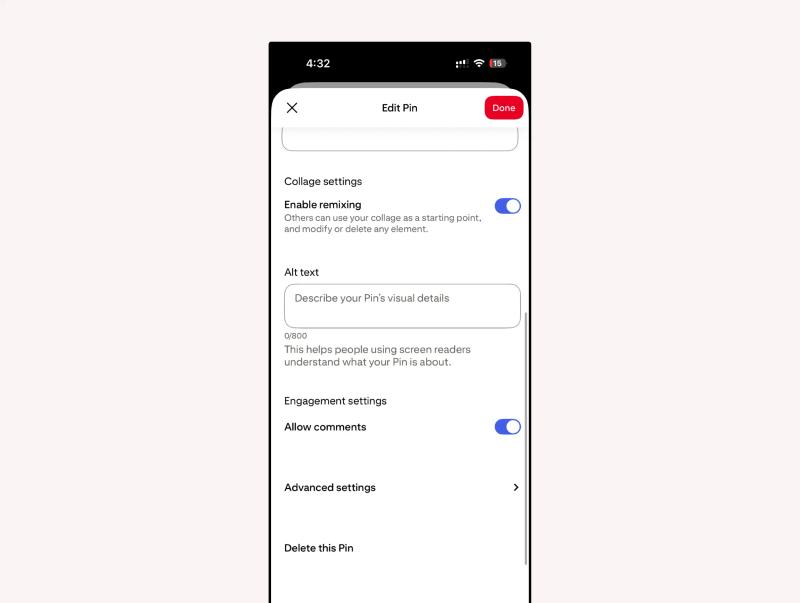
Confirm and your pin will be deleted from Pinterest.
How to Delete Multiple Pins at Once on Pinterest
If you need to clean up old content, seasonal designs, broken links, or duplicate Pins, deleting them one by one can take time.
Pinterest allows you to delete multiple Pins at once inside a board using the Organize feature.
Here’s how to do it properly.
Step 1: Open the Board Go to your Pinterest profile and click the board that contains the Pins you want to remove.
Step 2: Click “Organize” You’ll see the Organize button near the top of the board. Click it.
Step 3: Select Multiple Pins Click on each Pin you want to delete. A checkmark will appear on selected Pins.
Step 4: Click Delete After selecting all unwanted Pins, click Delete.
Step 5: Confirm Pinterest will ask for confirmation. Click Delete again.
All selected Pins will be permanently removed.
Should You Delete or Archive a Pin?
Sometimes deleting is not the best option.
If your goal is to clean up your profile but keep analytics history, consider archiving a board instead.
Archiving:
- Hides the board from your profile
- Keeps analytics data
- Allows you to restore later
More details here: https://help.pinterest.com/en/article/archive-or-unarchive-a-board
Final Thoughts
Removing a Pin on Pinterest is simple.
The real question is whether you should.
If it’s broken, irrelevant, or harming your brand, delete it.
If it just needs improvement, edit it instead.
Pinterest content compounds over time. Make decisions carefully.


Generate pins with AI agent on autopilot
Create, schedule, and grow your Pinterest presence effortlessly with AI-powered automation.
Try GenSumo FreeFAQs
Can I recover a deleted Pin on Pinterest?
No. Once deleted, it cannot be restored.
Why can’t I delete someone else’s Pin?
You can only delete Pins that you created. If someone saved your Pin, you cannot remove their saved version.
Does deleting a Pin delete it from group boards?
Yes. If you originally created it, deleting removes it from the board.
Can I hide a Pin instead of deleting it?
You cannot hide individual Pins, but you can archive the entire board.
Is deleting a Pin the same as archiving?
No. Deleting is permanent. Archiving is reversible.