


Pinterest is a great place for ideas, inspiration, and traffic.
But sometimes you may want to step away. Whether you're reducing screen time, closing a business, or cleaning up old accounts, deleting your Pinterest account is straightforward once you know where to look.
This guide explains exactly how to delete a Pinterest account on desktop and mobile, what happens after deletion, and important things to check before you proceed.
Before You Delete Your Pinterest Account
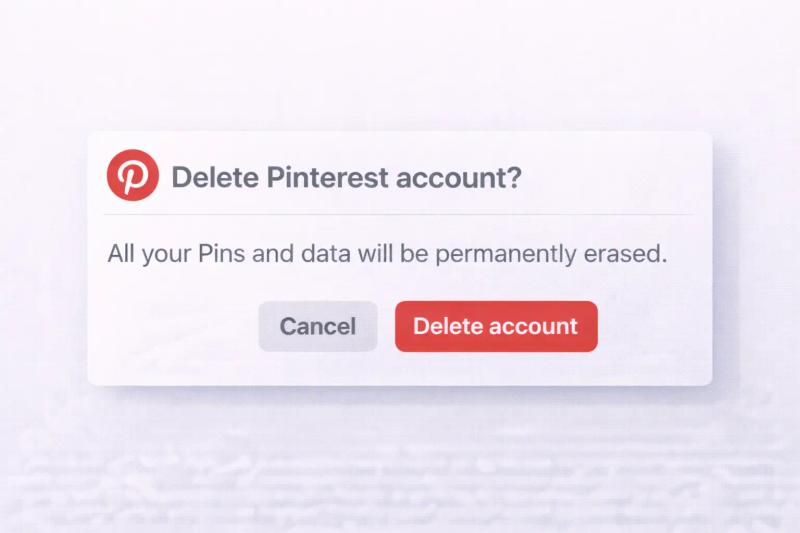
Deleting your account is permanent after 14 days. Before you continue, consider:
- Downloading important pins
- Saving analytics data (for business accounts)
- Informing collaborators on shared boards
- Removing Pinterest tags from your website
Pinterest offers both deactivation and deletion. Deactivation hides your profile temporarily. Deletion permanently removes it.
How to Delete Pinterest Account on Desktop
Step 1: Log in to your account
Go to Pinterest.com and sign in.
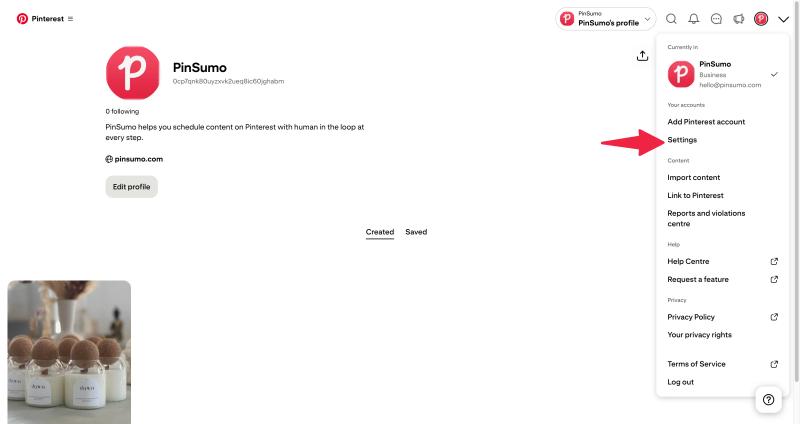
Step 2: Click your profile picture
Located at the top right corner.
Step 3: Open Settings
Click Settings from the dropdown menu.
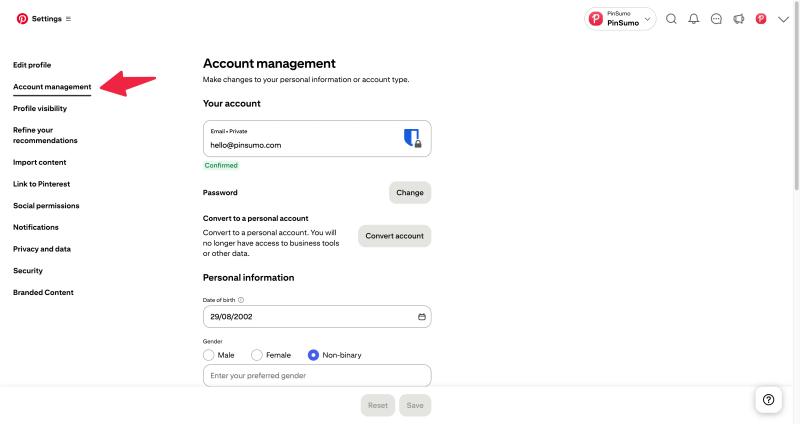
Step 4: Go to Account management
Scroll until you see Account management.
Step 5: Click Delete account
Select Delete account.
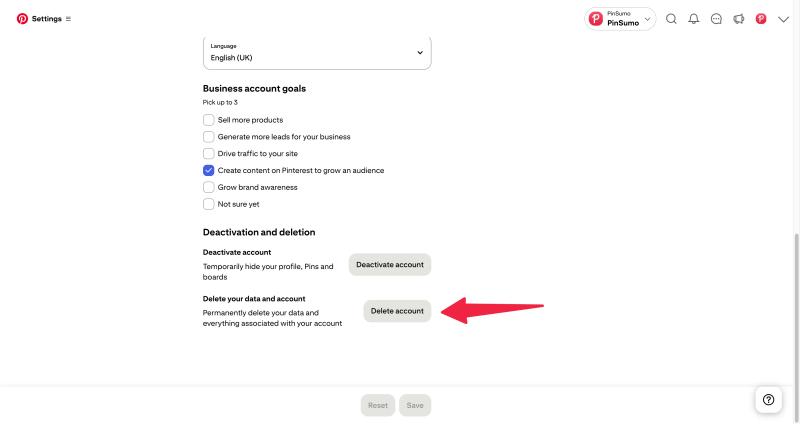
Step 6: Confirm your reason
Finally, confirm your selection with a reason.
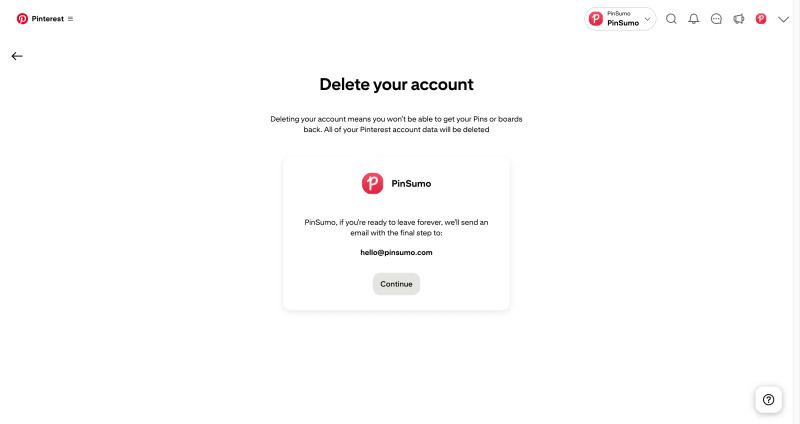
Pinterest will send a confirmation email. Click the link inside the email to finalize the deletion request.
How to Delete Pinterest Account on Mobile App
Deleting your Pinterest account from the mobile app only takes a few minutes. Make sure you are logged into the correct account before starting.
Step 1: Open the Pinterest app
Launch the app on your Android or iPhone device and log in.
Step 2: Go to your profile
Tap your profile picture at the bottom right corner of the screen.
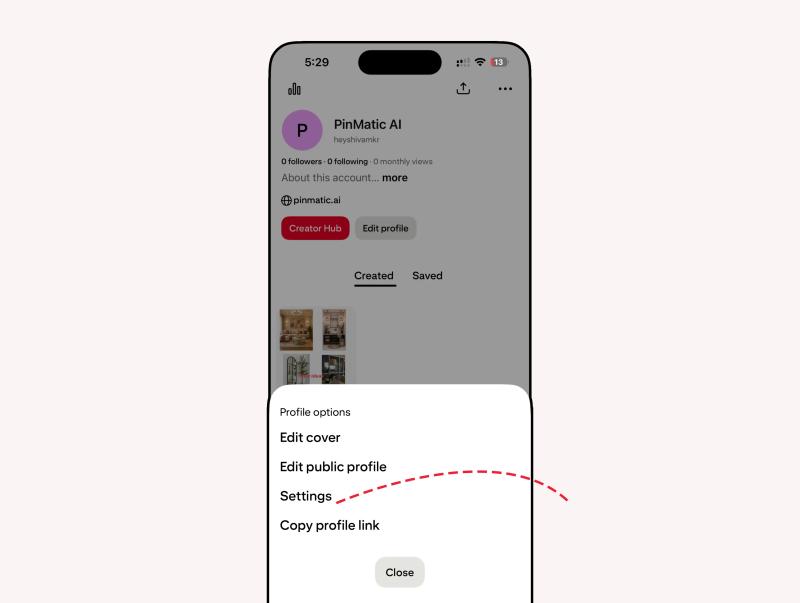
Step 3: Open Settings
Tap the three dots icon in the top right corner, then select Settings.
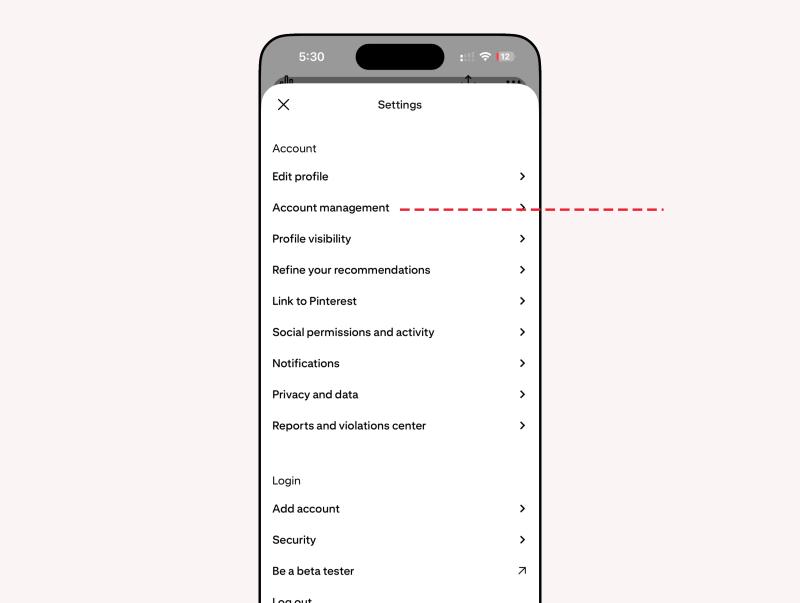
Step 4: Tap Account management
Scroll down and tap Account management.
Step 5: Select Delete account
Tap Delete account under the account options.
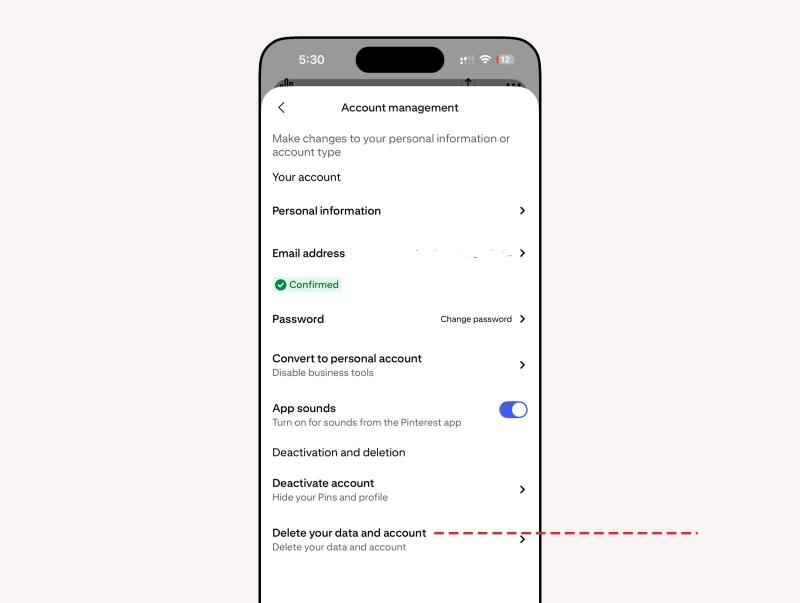
Step 6: Choose a reason
Pinterest will ask why you are leaving. Select a reason and continue.
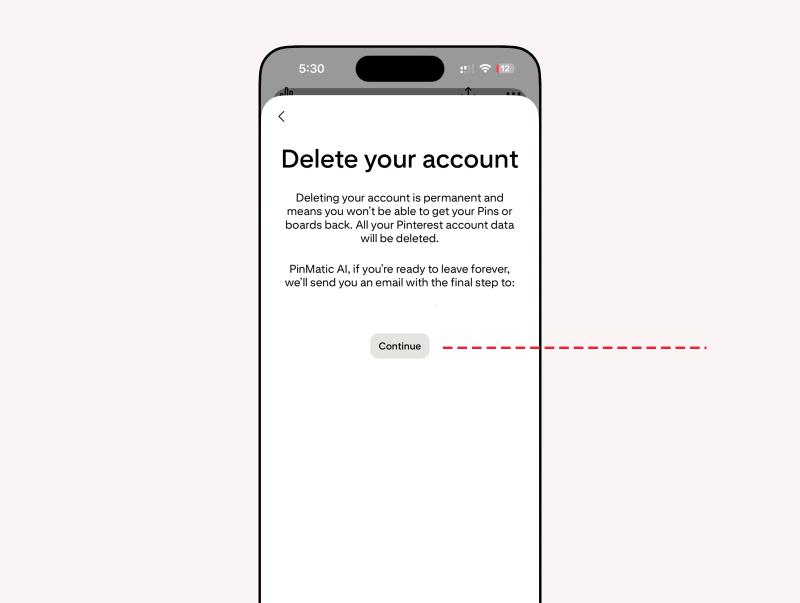
Step 7: Confirm via email
Check your registered email inbox and click the confirmation link to complete the deletion request.
After confirmation, your account will be scheduled for deletion.
What Happens After You Delete Pinterest Account?
Here is what to expect:
- Your profile becomes invisible immediately.
- Your boards and pins stop appearing in search.
- You have 14 days to reactivate.
- After 14 days, your data is permanently removed.
If you log back in within 14 days, your account is restored automatically.
How to Deactivate Instead of Deleting
If you are unsure, deactivation may be a better option.
- Go to Settings
- Open Account management
- Click Deactivate account
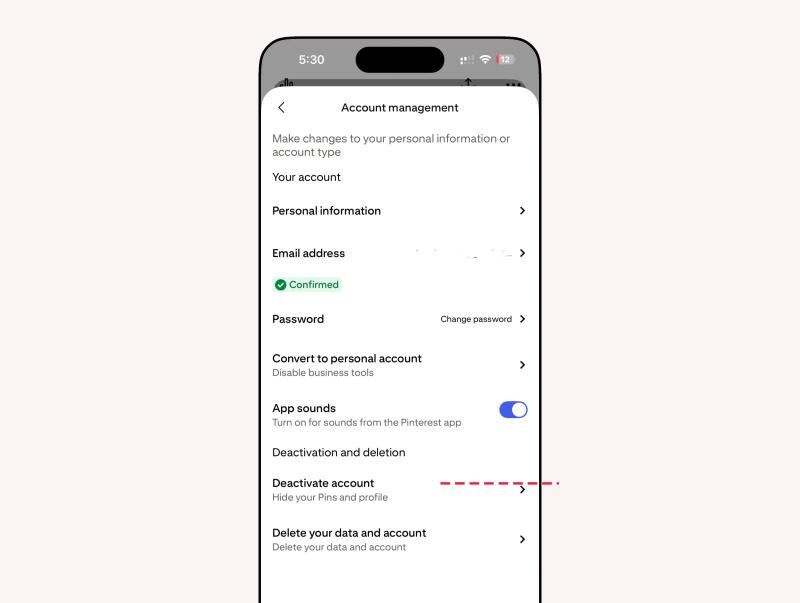
Deactivation hides your profile but keeps your data saved.
How to Delete a Pinterest Business Account
If you are using a business profile:
- Download your Pinterest Analytics data first.
- Remove any connected ad accounts.
- Disconnect your website.
- Remove the Pinterest tag from your site.
Then follow the same deletion steps inside Account management.
Common Issues When Deleting Pinterest Account
Did not receive confirmation email
Check spam folder. Make sure your email address is verified.
Cannot access account
Use the password reset option before attempting deletion.
Want to remove a connected business profile only
You can convert or detach it from personal settings instead of deleting everything.


Generate pins with AI agent on autopilot
Create, schedule, and grow your Pinterest presence effortlessly with AI-powered automation.
Try GenSumo FreeFinal Thoughts
Deleting your Pinterest account is simple, but it is a permanent decision after 14 days.
If you just need a break, consider deactivation instead. If you are closing a brand or cleaning up your digital presence, make sure to back up your data first.
Taking a few minutes to prepare can prevent losing important boards, pins, and analytics forever.
Frequently Asked Questions
How long does it take to delete a Pinterest account?
Pinterest gives you a 14-day window before permanent deletion.
Can I recover my account after deletion?
Yes, but only within 14 days by logging back in.
Does deleting Pinterest remove my pins from Google?
Eventually yes, but search engines may take time to update their index.
Can I delete Pinterest without email access?
No. You need access to your registered email to confirm deletion.
Is deactivation better than deletion?
If you are unsure, deactivation is safer because it allows you to return anytime.